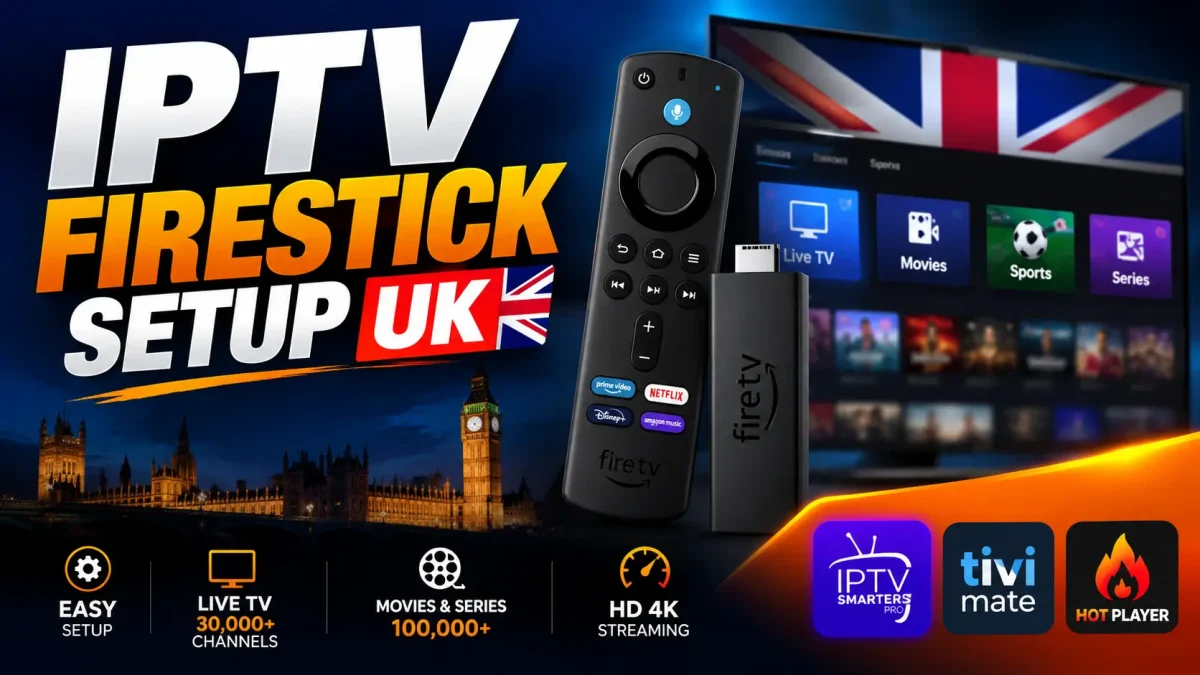
IPTV Firestick setup UK is usually straightforward when you have four things: a compatible Fire TV Stick, a stable internet connection, a compatible IPTV player and valid subscription details. The exact installation path depends on the Fire TV model, Fire OS version, region and whether the player is currently available in the Amazon Appstore.
What You Need Before You Start
- Fire TV Stick connected to the internet
- Amazon account and device setup completed
- A compatible IPTV player
- Your IPTV subscription details
- Fire TV remote control
- Access to the email or WhatsApp account where setup details were sent
To set up IPTV on a Fire TV Stick, you need an internet-connected Fire TV device, a compatible IPTV player, valid service details and access to the device’s supported app-installation system.
Keep your login information private and never paste real credentials into screenshots, forums or public support posts.
Step 1: Connect and Update Your Fire TV Stick
Connect the Fire TV Stick to your television and power supply, pair the remote, join your home Wi-Fi and complete the Amazon device setup. Fire TV menus vary slightly between generations, so use the labels shown on your own screen.
Before installing a player, check for available Fire OS updates and make sure the device has enough free storage. Amazon notes that available storage can be required when downloading updates. See Amazon’s Fire TV update guidance. Keeping the device current can also improve compatibility and security.
For a broader software comparison, compare compatible IPTV players.
Step 2: Choose a Compatible IPTV Player
The IPTV player is the app that displays your channels, films, series and guide data. It is separate from the IPTV subscription. Choose a player that supports Fire TV and accepts the credential format supplied by your service.
Some players are available directly through the Amazon Appstore; others may have different availability by model, Fire OS version or region. Do not assume that an app listed in an older guide is still available today. If a player is not in the normal store, follow the official player/vendor instructions and check that the installation method is permitted and supported for your device. Avoid copied download codes, unknown APK websites and instructions that ask you to disable important security controls.
Step 3: Install the IPTV Player
When the player is available in the Amazon Appstore, use the Fire TV search function, open the app listing and select the normal download or install option. Amazon’s current help page describes searching from the Fire TV home screen and selecting Get to download an app. Read Amazon’s Fire TV app-download instructions.
After installation, open the player from the Apps area. If an app is unavailable, do not substitute an unverified download. Check the player’s official documentation or choose another compatible player that supports your device and login format.
Step 4: Add Your IPTV Subscription Details
Open the player’s add-account or playlist screen. Depending on the service and player, you may be asked for:
- a server or portal URL, username and password for an Xtream Codes/API-style login; or
- an M3U playlist URL.
Enter the details exactly as supplied, including capital letters and punctuation. Do not use example credentials from an online article as if they were your own. FoxTele setup details are sent through the confirmed support/order process; contact support@foxtele.uk or WhatsApp support if you need help identifying the correct fields.
Step 5: Let the Player Load Your Content
After you submit valid details, the player may load live channels, categories, films, series and EPG data where supported. The first load can take longer than later launches because the app is downloading guide or catalogue information. Timing depends on the player, Fire TV storage, network and service response; no fixed number of seconds should be assumed.
If the screen remains empty, wait briefly, check the login format and restart the player before changing several settings at once.
Step 6: Check Live TV, Movies and EPG
Test one or two live channels, open the on-demand area if supplied, and check whether the EPG shows programme information. Confirm that navigation works with the remote and that the picture quality is appropriate for your device and connection.
Content and picture quality can vary by stream. A missing EPG does not always mean the whole service is unavailable; it can be a player setting, guide-data issue or a temporary service response.
M3U vs Xtream Codes: Which Login Method Are You Using?
| Method | What you usually receive | Setup experience |
|---|---|---|
| Xtream Codes/API | Server/portal address, username and password | Enter separate fields; the player may organise live, VOD and EPG sections automatically. |
| M3U | A playlist URL, sometimes with a separate EPG URL | Paste the playlist address and configure guide data if the player supports it. |
Neither method is automatically better. Use the format your service supplies and select a player that supports it. If you are unsure, ask support rather than guessing or sharing your credentials publicly.
Common Fire TV IPTV Setup Problems
If playback still stutters after these checks, see how to fix IPTV buffering on Fire TV.
| Problem | Likely cause | What to try |
|---|---|---|
| Player does not install | App unavailable for the model, region or Fire OS version; storage issue | Update Fire TV, free storage, check the official app listing and choose a supported player. |
| Login rejected | Typing error, wrong login method or expired/incorrect details | Re-enter the fields carefully and ask the service to confirm the correct format. |
| Playlist does not load | Invalid URL, blocked request, player mismatch or temporary service response | Check the URL, confirm the player supports M3U/Xtream Codes and retry once after restarting. |
| Channels buffer | Weak Wi-Fi, household congestion, device load or stream-side issue | Test the connection near the Fire TV, pause other heavy traffic and try Ethernet where practical. |
| EPG is missing | Guide URL/settings unavailable or guide data is not supplied | Refresh the guide, check player settings and ask support whether EPG data is included. |
| App feels slow | Low storage, many background apps or older hardware | Close unused apps, clear appropriate cache, free storage and restart Fire TV. |
| Wi-Fi is unstable | Distance, walls, interference or too many connected devices | Restart the router, improve placement, reduce competing traffic or test a wired connection. |
How to Improve Streaming Performance on Fire TV
Ofcom advises checking the broadband speed you actually receive, considering other household usage and using Ethernet where practical. Its current broadband guidance also recommends checking router placement, interference, device updates and competing high-bandwidth activity. Read Ofcom’s Wi-Fi troubleshooting advice.
- Use a strong Wi-Fi signal and keep the router away from obvious interference.
- Consider a compatible Ethernet adapter if the Fire TV location allows a wired connection.
- Restart the router and Fire TV when diagnosing a temporary connection issue.
- Close apps you are not using and keep sufficient free storage.
- Install available Fire OS and player updates.
- Test another player or network only as a diagnostic comparison, not as a way to expose private credentials.
There is no universal speed number that guarantees every stream. Resolution, device performance, Wi-Fi conditions and simultaneous household use all matter.
How FoxTele Setup Works
FoxTele’s confirmed process is simple: choose a plan, complete the order, receive setup or access details, configure a compatible player and device, then start streaming. Support is available through support@foxtele.uk and WhatsApp if you need help. No exact activation time is promised in this guide.
For the wider journey, see How It Works, review the FoxTele FAQ or read the IPTV subscription checklist before choosing a plan.
Frequently Asked Questions
Can you use IPTV on a Fire TV Stick?
Yes, when a compatible IPTV player is available for your Fire TV model and accepts the login format supplied by the service.
Do I need a separate IPTV player?
Usually, yes. The player is the application used to load and play the subscription; it may be a third-party app with separate terms or fees.
Why won’t my IPTV login work on Fire TV?
Check for typing errors, the correct login method and current account details. If they are correct, ask the service to confirm the required fields.
Can I use Wi-Fi for IPTV on Firestick?
Yes, provided the Wi-Fi signal is stable enough for the stream. Ethernet is worth testing if distance or interference causes problems.
Why does IPTV buffer on my Fire TV Stick?
Weak Wi-Fi, household congestion, device load, player settings or a stream-side issue can all contribute. Work through the troubleshooting table before changing several settings.
Need an IPTV Plan for Your Fire TV Stick?
Once your device and player are ready, view FoxTele UK IPTV plans or contact support if you need help checking your setup.